Your front-desk computer takes two full minutes to boot up every morning. Your office manager’s laptop dies mid-Zoom call — again. You tell yourself, “It still works.” But here’s the thing: by the time a business computer feels slow, it’s probably already a security risk, a productivity drain, and a budget sinkhole rolled into one.
For most Bradenton small businesses, three to five years is the sweet spot for computer replacements. Not because the machines explode on their fifth birthday — but because after that window, the costs of keeping them start quietly piling up in ways you don’t see on a receipt.
Let’s walk through what actually matters when deciding whether to replace or hold on.
Security Support Disappears Before the Computer Does
This is the one that catches people off guard. Your computer might run fine, but if the operating system stops getting security updates, every day you use it is a gamble.
When Microsoft or Apple stops patching an operating system, newly discovered vulnerabilities go unfixed. Your antivirus software helps, but it can’t plug every hole in an unsupported system underneath it.
The UK National Cyber Security Centre recommends replacing obsolete products outright — because the risk of compromise keeps climbing the longer you wait. If you’re in a regulated industry like accounting or financial services, running unsupported systems could put you on the wrong side of compliance requirements too.
Bottom line: if a computer can’t run a supported operating system, it needs to go. No amount of “but it still works” changes that math.
Slow Doesn’t Always Mean Old — But It Usually Means Something
Here’s a stat that surprises people: a huge chunk of “this computer is dying” complaints turn out to be fixable without buying anything new. A full hard drive, not enough memory, too many programs launching at startup, or even malware can make a perfectly good machine crawl.

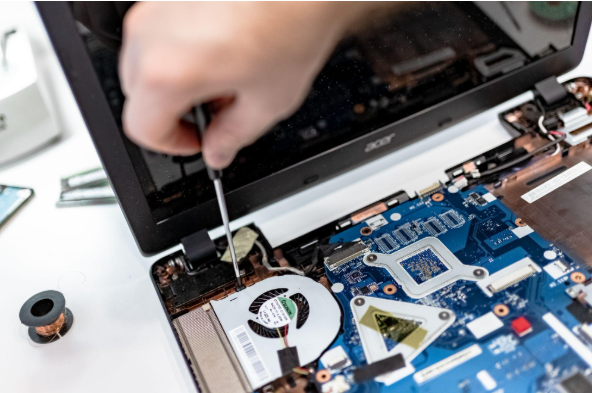
Before you approve a replacement, have your IT provider run diagnostics. A $150 memory upgrade or a drive swap might buy you another two solid years.
But — and this is the key — that only makes sense if the computer still has security support ahead of it. Spending $300 to upgrade a machine that loses operating system support in six months is throwing money away.
The Hidden Cost of “Just One More Repair”
One repair is fine. Two repairs, okay. But when your bookkeeper’s laptop has been in the shop three times this year, something’s off.
Add up what you’re actually spending: the repair bills, the IT support hours, and — the big one — the time your employee couldn’t work. A $200 repair sounds cheap compared to a $1,200 laptop. But if your office manager loses half a day each time, and it happens quarterly, that “cheap fix” costs more than the new machine would have.
This hits especially hard for Tampa Bay businesses where one person often wears three hats. When their computer goes down, three jobs stop — not one.
The Three-Year Checkup (Think of It Like a Car Inspection)
You don’t wait for your car to break down on I-75 before getting it checked. Computers deserve the same approach.
Intel’s own refresh guidance and Dell’s lifecycle planning both recommend reviewing business computers around the three-year mark. That doesn’t mean replacing them automatically — it means asking the right questions:
- Can it still run a supported operating system?
- Does it handle the software your employee actually uses every day?
- Has it needed repeated repairs?
- Is the warranty still active — or are parts even available?
- Would an upgrade buy enough useful life to justify the cost?
If it fails on security or software support, plan the replacement now. For performance and repair issues, compare the cost of fixing it against the cost of one more year of headaches.
Laptops, Batteries, and the “Always Plugged In” Trap
If your employee’s laptop has to stay plugged in all day just to survive, that’s a sign. For someone at a desk, it might not matter much. For someone visiting clients around Bradenton or Sarasota, a dead battery turns a laptop into a very expensive paperweight.
A battery replacement can extend a laptop’s useful life — if the rest of the machine is still solid and supported. Just don’t ignore a swollen or unusually hot battery. That’s not a “maybe next week” situation. Stop using it and get it inspected immediately.
Don’t Just Buy New — Retire the Old One Right
This is where businesses trip up. You get the shiny new laptop set up, and the old one sits in a drawer for six months. Or worse — it gets donated with client data still on it.
Before any computer leaves your office, business data needs to be properly wiped. Deleting files isn’t enough. NIST SP 800-88 Revision 2 (2025) provides guidance on proper data sanitization methods based on the type of storage and sensitivity of your data.
Keep a simple log: asset number, serial number, disposal date, and how the data was removed. If you handle sensitive client information — and if you’re an accounting firm or law firm, you do — this record matters.
Build a Replacement Schedule (Your Future Self Will Thank You)

The worst time to buy computers is when you have to. Emergency replacements mean rush orders, expedited setup fees, and employees sitting idle.
Keep a simple spreadsheet: purchase date, model, who’s using it, warranty expiration, and a planned review date. When a machine hits three years, flag it for review. Spread your purchases across budget cycles so you’re never replacing everything at once.
Standardizing on two or three approved models makes life easier too. Your team can share chargers and docks, and your IT provider can keep consistent security configurations across the board.
The Six-Question Computer Health Check
Next time you’re wondering whether a computer needs to go, run through these:
- Security: Can it run an operating system that still gets updates?
- Software: Does it support everything the employee needs?
- Speed: Can it handle a normal workday without constant delays?
- Repairs: Has it been in the shop more than once this year?
- Warranty: Is it still covered, or are replacement parts hard to find?
- Upgrade math: Would fixing it buy enough life to be worth the cost?
If the answer to #1 is no, stop there. That computer needs to be replaced — period.
You Don’t Have to Figure This Out Alone
Most Bradenton business owners didn’t get into their industry to manage computer lifecycles. You’ve got clients to serve, payroll to run, and about forty other things competing for your attention.
That’s exactly what we do at Reef Cyber Security. We review what you’ve got, flag the machines that are putting you at risk, and build a replacement plan that fits your budget — not ours.
Book a free 15-minute risk assessment with Justin and Sara at Reef Cyber Security.